

Something most people don't think about until they need it is that the camera is only half of a security system. The other half is the box that saves the footage. If you've started shopping around, you've probably seen two terms show up again and again. Network Video Recorder (NVR) and Digital Video Recorder (DVR).
They sound almost identical, and they do have overlaps. Both record what your cameras see, so, in some instances, you can watch live or scroll back to find out what set off a motion alert. The real difference is how they connect to your cameras.
That's the heart of it. Which one makes sense for you mostly comes down to whether you have a brand-new setup, or an older system with wiring already in the walls. Below, we'll look at how each type works and where each one makes the most sense, so you can choose with confidence.
What is a NVR?
An NVR is an IP connected dedicated recording box, built to run around the clock, that collects video from your cameras and stores it on hard drives inside. This may require extra software, such as a Video Management Software (VMS). This is different from an analog DVR, as from the VMS you can watch, scroll back through recordings, or check in from your phone when you're away.
What makes an NVR different is where the hard work happens. With an IP camera, the camera itself captures the image and compresses it into a digital file before sending it across the network. The NVR's job is simply to receive, store, and organize that video. A DVR works the other way around. Analog cameras send a raw signal down a coaxial cable, and the recorder does the processing.
Some NVRs supply power to cameras through the same Ethernet cable that carries the video (called PoE, or Power over Ethernet), so each camera needs just one cable. IP systems also make it easy to add cameras, mix models with different features, and support high resolutions. The trade-off is that you'll want to check camera compatibility and keep the system secure, since it lives on your network.
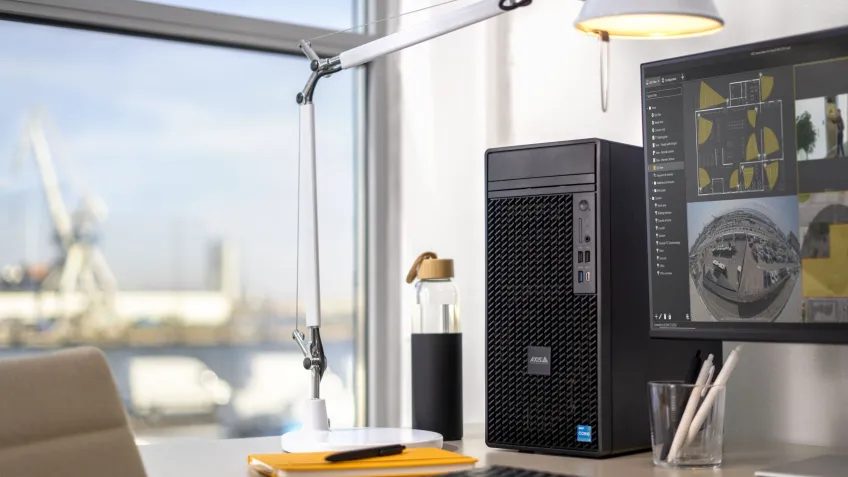
Connect cameras to the recorder
Deploying cameras on an NVR is straightforward, even across a large site. In some cases, with built-in PoE ports, each camera runs on a single network cable for both power and video, so there's no need to install outlets at every mounting point. For larger installations, PoE switches let you place cameras farther from the recorder and add capacity as you grow.
Sticking with one manufacturer for cameras and recorders simplifies setup, firmware updates and technical support. If you're integrating existing cameras from other brands, ONVIF compatibility usually makes this possible.
Check the NVR's channel count and total bandwidth limits before you buy, especially if you expect to expand.
View and store live video footage
Once cameras are connected, staff can monitor from a display connected to the NVR, such as a screen at reception or in a security office. Recording runs continuously in the background, provided the recorder has drives installed. Many business-grade NVRs ship without drives, so plan for storage as part of the purchase.
Because cameras compress their video before sending it, the NVR's main job is to store and index footage. You can record continuously, on a schedule that matches business hours, or only when motion is detected in specific zones. Retention time depends on factors such as drive capacity, camera count, resolution, frame rate, and compression format. AV1 can significantly reduce storage needs.
Set your retention period based on how you'll use the footage. Incident investigations, insurance claims, and industry or privacy regulations may all require you to keep footage for a minimum period or delete it after a maximum one.
Access recordings remotely
Remote access lets managers or security staff check on one or several locations without being on site. After the NVR is connected to your network and linked to the manufacturer's app or management software, authorized users can view live and recorded video from a phone, browser, or workstation. Multi-site businesses can often manage several recorders from a single dashboard.
It is worth mentioning that access should be controlled like any other business system. Give each user their own account and set permissions by role. A site or store manager may only need live view for one site, while your security lead needs playback and export rights across all locations. Turn on two-factor authentication where available, and review audit logs to see who accessed or exported footage.
Work with your IT team on network placement. Keeping cameras and the network video recorder on a separate network segment (VLAN), avoiding manual port forwarding, and applying firmware updates on a regular schedule all reduce risk. Confirm that each site's upload bandwidth can support remote viewing without slowing down other business traffic.
NVR vs DVR: What are the key differences?
We've already touched on how NVRs and DVRs handle video differently, and that difference shapes almost everything else about them. This can include installation costs, image quality, how easily you can expand, and how the system fits into your IT environment. Here's how they compare.
IP vs analog
The biggest difference is the type of camera each recorder supports. An NVR works with IP cameras, which process and compress their own video before sending it over your network. A DVR works with analog or HD-over-coax cameras. These cameras send their signal down a coaxial cable, and the recorder does the processing.
Because IP cameras handle more of the work themselves, they often include features such as built-in analytics, motion zones, or two-way audio.
Video and audio quality
Both systems can deliver sharp, high-resolution footage, with modern HD-over-coax DVRs supporting resolutions up to 4K. IP cameras offer a wider range of options at the top end, including higher resolutions, wide-angle lenses, and advanced low-light performance. That makes NVRs the stronger choice when you need to identify faces or read license plates at a distance.
Audio is also simpler with IP cameras. Many models have built-in microphones that send audio over the same network cable. Some DVR systems can carry audio over coax, while others need separate audio connections.
Before recording audio, check local laws, since many regions require notice or consent.
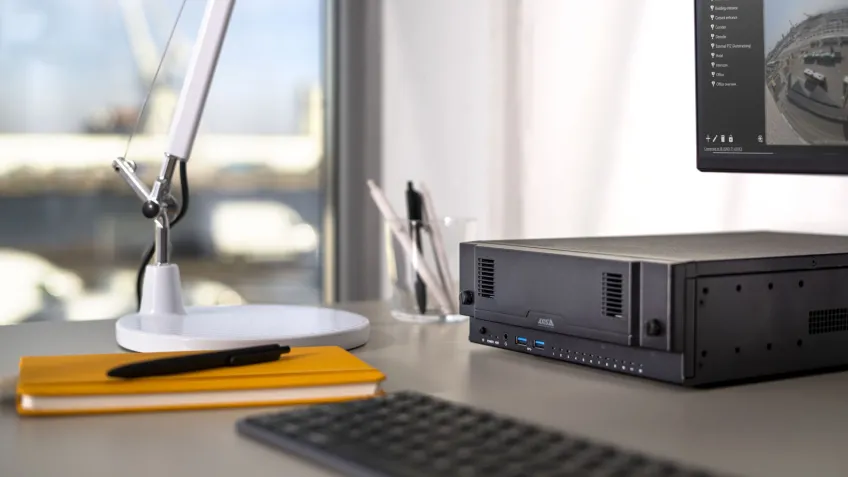
Installation complexity
With PoE, each IP camera needs only one Ethernet cable for both power and data. This reduces labor costs and removes the need for power outlets near each camera. DVR cameras need a power source in addition to the video signal. Installers often use a combined Siamese cable to keep this to a single run, and some systems support Power over Coax.
For new buildings, network cabling is usually the more practical choice. If your site already has coax in good condition, reusing it can save significant time and disruption.
Flexibility and scalability
Cameras connect through network switches, so they don't need to be wired back to the recorder, making network video recorders easier to expand. You can add cameras in new areas as long as you stay within the NVR's channel and bandwidth limits. Multi-site businesses can also view several recorders from one platform.
DVRs are more fixed. Each camera connects directly to a port on the recorder, so adding cameras beyond that limit means adding or replacing the DVR.
Cost
DVR systems generally cost less upfront, particularly when existing coax can be reused. NVR systems usually cost more initially, but they can be cheaper to install in new buildings and easier to expand later. To compare fairly, factor in the overall security system cost, such as cabling, labor, storage, and any plans to grow over the next few years, not just the price of the hardware.
H3: Which one is right for you?
For most new installations, a network video recorder offers more flexibility, especially if you plan to add cameras, manage multiple sites, or integrate video with other network systems. If your building already has coax cabling in good condition, a DVR can be a cost-effective upgrade without rewiring. Hybrid recorders support both camera types and can help bridge the two during a gradual transition.
6 questions to ask when choosing your network video recorder
We’ve covered a lot of the differences between a digital video recorder and a network video recorder, but there are still a few other things to consider. A small retail store and a multi-site operation will need very different setups.
Working through these questions will help you narrow down the options and avoid surprises after installation.
How many channels do you need?
In most cases, one camera has one video channel, but some cameras contain several channels, they are typically called multisensor cameras. It is preferred to count the number of video channels rather than the cameras, as they are the ones driving the storage and performance needs.
Will it support your cameras?
Your NVR needs to handle your camera's resolution and compression format. For a 4K system, confirm that the NVR can record 4K and play back multiple 4K streams at once.
Compatibility matters, too. Cameras from the same manufacturer usually work best, with full access to features. If you're mixing brands, check that both the cameras and NVR support ONVIF, and be aware that some advanced features may not carry over.
Should you choose a PoE NVR?
For smaller and mid-sized installations, an NVR with built-in PoE ports is usually the simplest option. Each camera connects with one cable for power and data. Check the total PoE power budget as well as the port count, since PTZ cameras or outdoor cameras with heaters draw more power.
Larger or spread-out sites often use separate PoE switches instead. Ethernet runs are limited to about 100 meters (328 feet), so switches placed closer to cameras can be more practical.
Which smart features matter to your business?
Many NVRs and IP cameras now include analytics that go beyond basic motion detection. Line crossing and intrusion alerts can flag activity in restricted areas after hours, and people counting can help retail teams understand foot traffic. Some systems also integrate with access control or alarm systems.
Analytics often depend on the camera and NVR working together, so confirm compatibility before you buy.
How will your team access and manage video?
Think about who needs access and what they need to do. Consider those who may only need to check a camera view at a single site, verses those who may need to be able to search, export, and share footage across multiple locations.
Look for role-based user permissions and a mobile app your team will find easy to use. If you manage several sites, video management software (VMS) lets you monitor multiple recorders from one place. This is often a separate product, so check licensing costs.
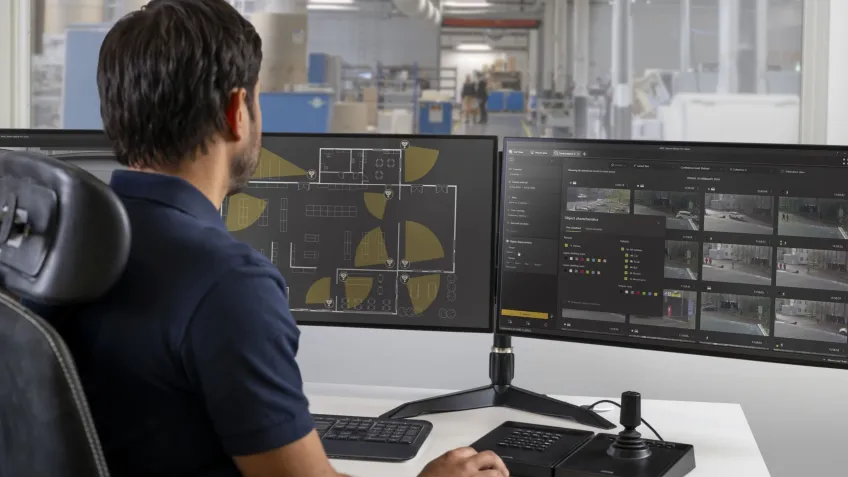
(VMS) lets you monitor multiple recorders from one place. This is often a separate product, so check licensing costs.
How secure is the system?
Your NVR sits on your business network, so treat it like any other IT system when it comes to security. Look for two-factor authentication, audit logs, encrypted connections, and a manufacturer with a clear record of regular firmware updates. Involve your IT team early, especially if you plan to place cameras on a separate network segment.
Finding the right fit
As we’ve shown, an NVR shapes how your security system is installed, how easily it grows, and how your team uses video every day. IP cameras handle their own processing and connect over your network, which makes NVR systems a strong fit for new installations, expanding businesses, and multi-site operations.
That doesn't make DVRs the wrong choice. If your building already has good coax cabling, a DVR or hybrid recorder can be a sensible, lower-cost upgrade that avoids rewiring.
Whichever direction you take, start with how you'll actually use the system. Count your cameras and leave room to grow. Decide how long you need to keep footage. Think about who needs access, from which locations, and how the system will fit into your network security. Then compare spec sheets with those answers in mind, looking past channel count to bandwidth limits, PoE power budgets, storage options and camera compatibility.
Getting these details right at the start saves time, money and frustration later, and gives you a system your team can rely on for years.
FAQs
Frequently asked questions about network video recorders.
Can an NVR work without an internet connection?
Yes. An NVR records footage locally, so it keeps working without internet access. The cameras still need to connect to the NVR, either through its built-in PoE ports or through a network switch, but that local network doesn't need to reach the internet.
Without internet access, you can still view live and recorded footage on a monitor connected to the NVR or from a computer on the same local network. You won't be able to view cameras remotely, receive mobile alerts or use cloud-based features. Some systems also rely on an internet connection to keep their clocks synchronized or change configuration, which matters if footage is ever needed as evidence. If you plan to run your NVR offline, check its time settings and plan how you'll install firmware updates.
Do I need a special monitor for an NVR?
Not usually. Most NVRs connect to standard monitors or TVs via HDMI or VGA. While you'll need a 4K monitor to view 4K recordings in full detail, the monitor itself doesn't change the camera's recording quality.
However, some NVRs have no monitor port. Instead, you view footage on a computer connected to the NVR over the network, either through a web browser or a VMS.
How long can an NVR record for?
An NVR can record continuously for as long as it has power and working drives. When storage fills up, most NVRs automatically overwrite the oldest footage first, so recording never stops.
How many days of footage you can keep depends on your drive capacity, number of cameras, resolution, frame rate, compression format and recording mode. Recording only on motion detection and using AV1 compression can both extend retention significantly. A storage calculator from your camera manufacturer will give you a reliable estimate for your setup. Many NVRs also let you set a maximum retention period, which helps if your business needs to delete footage after a certain time to meet privacy requirements.
Can I use any IP camera with any NVR?
Not always. Cameras and NVRs from the same manufacturer offer the most reliable setup and full access to features. Many NVRs also work with third-party cameras that support ONVIF, an industry standard for compatibility between brands.
Mixed-brand setups usually handle basic live viewing and recording well, but advanced features such as analytics, two-way audio or PTZ controls may not work fully. Some NVRs also limit or require licenses for third-party cameras. Before buying, check the manufacturer's compatibility list and confirm the ONVIF profiles each device supports.
Is it possible to upgrade the storage on an NVR?
In most cases, yes. You can add drives to empty bays or replace existing drives with larger ones, up to the maximum capacity per bay listed on the spec sheet. Some NVRs also support external or network storage for additional capacity.
New drives usually need to be formatted by the NVR, and replacing a drive removes the footage stored on it, so export anything you need to keep first. If your NVR uses Redundant Array of Independent Disks (RAID), follow the manufacturer's steps for replacing drives one at a time. For best results, use surveillance-rated drives designed for continuous recording.
